
视频地址:http://t.cn/RacnKeB
安装cordova
1. 下载安装node.js(js的运行环境),安装时勾选npm(js包的管理工具)。
2、下载安装git(配置好环境变量)。
3、在cmd控制台,使用npm安装cordova。
npm install -g cordova创建cordova项目
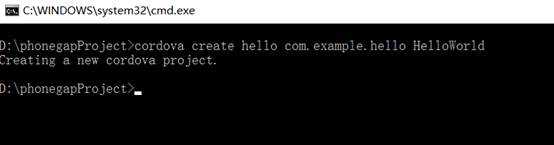
$ cordova create hello com.example.hello HelloWorld第一个参数hello指定项目创建的目录
第二个参数com.example.hello指定项目的包名,您也可以在config.xml中修改
第三个参数 HelloWorld 指定应用程序显示的名称
如图1-1所示,成功创建了一个cordova项目,项目的地址为D:\phonegapProject\hello
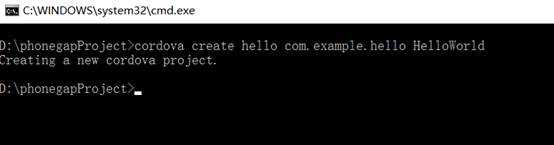
图1-1
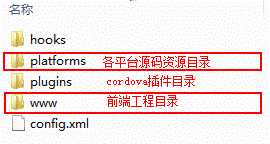
创建出来的工程目录如下图所示
添加平台
后续的命令都需要在cordova工程目录下进行,所以先进到工程根目录
$ cd hello
添加目标平台,添加平台前确认已经安装好相关平台的SDK
添加目标平台,以下命令行添加了ios和Android平台中
$ cordova platform add ios
$ cordova platform add amazon-fireos $ cordova platform add android $ cordova platform add blackberry10 $ cordova platform add firefoxos打包App
创建cordova工程的时候,生成的www文件夹为前端工程的放置的位置,目录基于web应用架构,如下图所示:
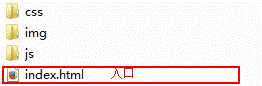
index.html为混合App的入口,一些初始化要放在www/js/index.js文件中的deviceready中。前端工程开发完成后就可以打包成对应各平台的App了。
cordova build
可以打包指定的平台
cordovaios
cordovaadndroid
运行app
真机运行
$ cordova run android
模拟器运行
$ cordova emulate android
app图标设置
修改config.xml
下面的配置应用于所有平台
<icon src=”res/icon.png” />
为每个平台还可以单独配置,以适合不同分辨率。
<platform name=”android”>
<icon src=”res/android/ldpi.png” density=”ldpi” />
<icon src=”res/android/mdpi.png” density=”mdpi” />
<icon src=”res/android/hdpi.png” density=”hdpi” />
<icon src=”res/android/xhdpi.png” density=”xhdpi” />
</platform>
<platform name=”ios”>
<!– iOS 8.0+ –>
<!– iPhone 6 Plus –>
<icon src=”res/ios/icon-60@3x.png” width=”180″ height=”180″ />
<!– iOS 7.0+ –>
<!– iPhone / iPod Touch –>
<icon src=”res/ios/icon-60.png” width=”60″ height=”60″ />
<icon src=”res/ios/icon-60@2x.png” width=”120″ height=”120″ />
<!– iPad –>
<icon src=”res/ios/icon-76.png” width=”76″ height=”76″ />
<icon src=”res/ios/icon-76@2x.png” width=”152″ height=”152″ />
<!– iOS 6.1 –>
<!– Spotlight Icon –>
<icon src=”res/ios/icon-40.png” width=”40″ height=”40″ />
<icon src=”res/ios/icon-40@2x.png” width=”80″ height=”80″ />
<!– iPhone / iPod Touch –>
<icon src=”res/ios/icon.png” width=”57″ height=”57″ />
<icon src=”res/ios/icon@2x.png” width=”114″ height=”114″ />
<!– iPad –>
<icon src=”res/ios/icon-72.png” width=”72″ height=”72″ />
<icon src=”res/ios/icon-72@2x.png” width=”144″ height=”144″ />
<!– iPhone Spotlight and Settings Icon –>
<icon src=”res/ios/icon-small.png” width=”29″ height=”29″ />
<icon src=”res/ios/icon-small@2x.png” width=”58″ height=”58″ />
<!– iPad Spotlight and Settings Icon –>
<icon src=”res/ios/icon-50.png” width=”50″ height=”50″ />
<icon src=”res/ios/icon-50@2x.png” width=”100″ height=”100″ />
</platform>
初始屏幕设置
cordova plugin add cordova-plugin-splashscreen
<platform name=”android“>
<!– you can use any density that exists in the Android project –>
<splash src=”res/screen/android/splash-land-hdpi.png” density=”land-hdpi”/>
<splash src=”res/screen/android/splash-land-ldpi.png” density=”land-ldpi”/>
<splash src=”res/screen/android/splash-land-mdpi.png” density=”land-mdpi”/>
<splash src=”res/screen/android/splash-land-xhdpi.png” density=”land-xhdpi”/>
<splash src=”res/screen/android/splash-port-hdpi.png” density=”port-hdpi”/>
<splash src=”res/screen/android/splash-port-ldpi.png” density=”port-ldpi”/>
<splash src=”res/screen/android/splash-port-mdpi.png” density=”port-mdpi”/>
<splash src=”res/screen/android/splash-port-xhdpi.png” density=”port-xhdpi”/>
</platform>
<platform name=”ios“>
<!– images are determined by width and height. The following are supported –>
<splash src=”res/screen/ios/Default~iphone.png” width=”320″ height=”480″/>
<splash src=”res/screen/ios/Default@2x~iphone.png” width=”640″ height=”960″/>
<splash src=”res/screen/ios/Default-Portrait~ipad.png” width=”768″ height=”1024″/>
<splash src=”res/screen/ios/Default-Portrait@2x~ipad.png” width=”1536″ height=”2048″/>
<splash src=”res/screen/ios/Default-Landscape~ipad.png” width=”1024″ height=”768″/>
<splash src=”res/screen/ios/Default-Landscape@2x~ipad.png” width=”2048″ height=”1536″/>
<splash src=”res/screen/ios/Default-568h@2x~iphone.png” width=”640″ height=”1136″/>
<splash src=”res/screen/ios/Default-667h.png” width=”750″ height=”1334″/>
<splash src=”res/screen/ios/Default-736h.png” width=”1242″ height=”2208″/>
<splash src=”res/screen/ios/Default-Landscape-736h.png” width=”2208″ height=”1242″/>
</platform>